When the Start Menu Becomes a Storefront: Who Controls Your Windows Desktop?
A July 2026 Windows 11 change puts subscription status in Start. What does that reveal about commercial prompts and desktop control?
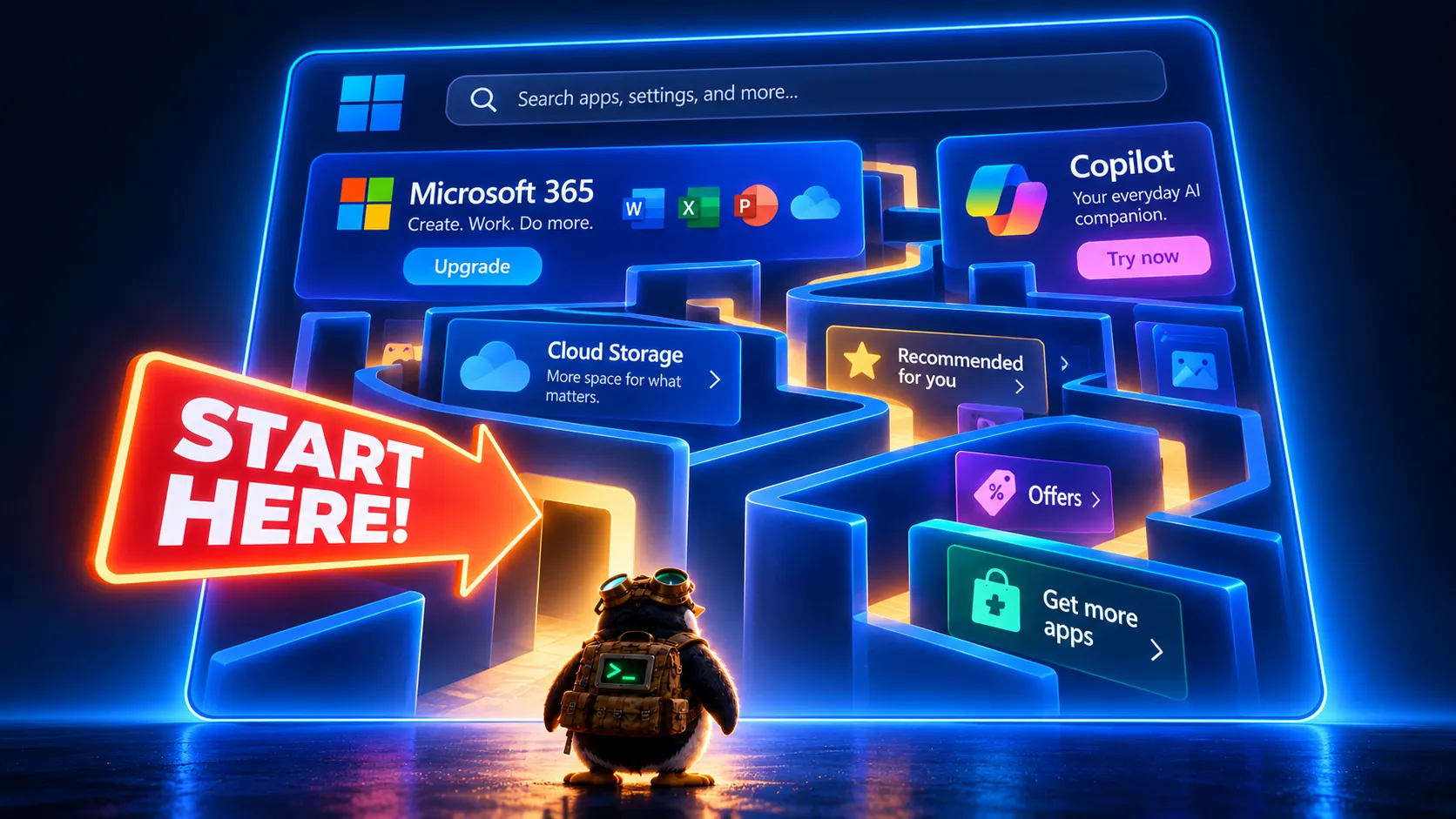
In July 2026, Microsoft documented a small change to Windows 11: the account control in Start gained a badge showing subscription status for people signed in with a Microsoft account. It is an interface change, not a newly discovered security breach. But it puts a commercial relationship where people launch programs and shut down their computers. That makes it a useful moment to ask: whose priorities shape the desktop you see every day? Microsoft's July 28 update notes describe the feature and say availability varies by device and market.
Why a small badge matters
The Start menu is valuable space. It is the entrance to work, files, settings, and power controls. A subscription badge there reminds users that the operating system is also a channel through which its maker can present account and purchasing information. Microsoft may see the badge as helpful account context. A user who bought a computer to write, study, or run a business may reasonably see it as one more commercial signal in a personal workspace.
One badge alone is not a reason to abandon a working system. The pattern matters. Windows also documents Personalized offers, an optional setting that can use device information, Windows activity, diagnostic data, account information, and information from other Microsoft products to tailor tips, ads, and recommendations. Microsoft says those offers can include its own products, third-party products, apps, and hardware. Its privacy settings guide also describes the Windows advertising ID, suggested content in Settings, and app-launch tracking for Start and search.
Those details deserve precise language. Personalized offers are a choice users can turn off. The July badge does not prove that Windows is secretly reading documents or selling files. The concern is structural: a company that controls the operating system can repeatedly introduce sales and engagement features into the workspace. The user must keep finding the controls, understanding the defaults, and checking again after the interface changes.
The cost of constant adjustment
Settings can reduce unwanted recommendations, and people who stay on Windows should use them. Yet opt-outs place the burden on the user. A person may turn off an advertising ID and still encounter other forms of advertising; Microsoft's own documentation says that setting does not govern every interest-based ad on the web or in other products. Disabling a suggestion in Settings does not establish a lasting rule that the desktop will never contain a different promotion later. Microsoft's explanation of the advertising ID and offers makes those distinctions explicit.
For a family, school, or small business, this is more than an aesthetic complaint. Prompts can confuse users about which messages are essential for security, which are account reminders, and which are optional purchases. A trusted system should make that distinction easy. The practical question is whether you want to spend years managing a vendor's changing commercial interface or choose a desktop built around different incentives.
What Linux changes—and what it does not
Linux is a family of operating-system distributions, not one identical desktop. A mainstream distribution lets you select a desktop environment and install software from its repositories. You can use the machine with a local account, choose whether to connect a cloud service, and replace desktop components that do not suit you. Debian, for example, commits in its Social Contract to remaining free and making its free-software components available for inspection and change. These are governance and design differences, not proof that every Linux application is private or every distribution has ideal defaults.
You still need to choose your software carefully. A browser can track you on Linux. A cloud account can still collect what you upload. A neglected Linux installation can miss important security updates. The advantage is a clearer ability to decide which services, applications, and desktop elements belong on your computer.
What to do this week
- Review the Windows settings you already have. In Settings, open Privacy & security and review Recommendations & offers, including Personalized offers, the advertising ID, Start and search tracking, and suggested content in Settings. Labels can change with updates; use Microsoft's current instructions.
- Write down the tools you cannot lose. Include printers, scanners, games, accessibility features, accounting software, and employer-required applications. A move to Linux succeeds when it is tested against your real work.
- Try a live Linux session before installing. Linux Mint's installation guide describes a live session that runs from installation media without permanently changing the installed system. Test Wi-Fi, audio, sleep, display output, and peripherals there.
- Make a separate backup before changing partitions. A live trial is low commitment; installation can erase data if the wrong option is chosen. Keep a tested copy of files on another device or drive.
The subscription badge is small. The choice it illustrates is large. If you want a desktop whose account, advertising, and interface decisions are easier to challenge or replace, start testing Linux now—while you can evaluate it calmly, on your own terms.
- Categories: switch to linux
- Tags: #privacy, #Windows 11, #Digital Autonomy, #Microsoft Account, #Linux Desktop